

To insert bullets in Excel, select a cell and press Alt + 7 using the numeric keypad on Windows. You can also choose Insert > Symbol and select a bullet character.
Excel doesn’t offer the same automatic bullet-list formatting as Microsoft Word, but you can still create neat checklists, meeting agendas, and task lists. Here are six practical methods, including options for Mac and Excel Online.
Quick Answer: Excel Bullet Point Shortcuts
| Action | Method | Best Use |
|---|---|---|
| Insert a bullet | Alt + 7 (numeric keypad) | Windows desktop |
| Add a special character | Insert > Symbol | Individual bullets |
| Insert a new line | Alt + Enter | Multiple bullets in one cell |
| Paste a bullet | Copy • and paste | Any supported platform |
| Add bullets with a formula | =UNICHAR(8226)&" "&A2 | Existing text |
| Add bullets in a text box | Right-click > Bullets | Dashboard notes |
Note: Keyboard shortcuts vary depending on your operating system, Excel version, and keyboard layout.
Method 1: Insert a Bullet in Excel Using a Keyboard Shortcut

The quickest way to add bullet points in Excel on Windows is to use the numeric keypad.
Steps to Insert a Bullet
- Open your Excel workbook.
- Select the cell where you want the bullet.
- Hold down the Alt key.
- Press 7 on your numeric keypad.
- Release Alt.
- Type a space followed by your text.
- Press Enter to finish.
For example:
• Prepare monthly report
You can repeat these steps in other cells to create a task list.
What If Your Keyboard Doesn’t Have a Numeric Keypad?
The Alt + 7 shortcut depends on a working numeric keypad. The number keys across the top of your keyboard are not equivalent.
If your laptop doesn’t have a numeric keypad, use the Symbol menu or copy and paste the bullet character instead.
Also, check that Num Lock is enabled when required by your keyboard.
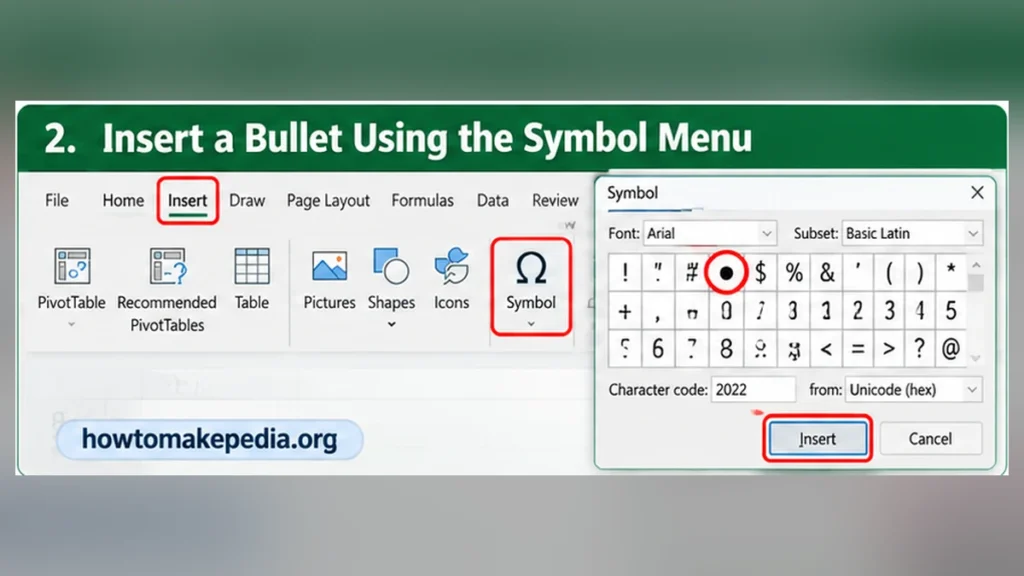
If keyboard shortcuts aren’t working, Excel’s Symbol menu offers another option.
Steps to Insert a Bullet Symbol
- Open your workbook and select an empty cell.
- Go to the Insert tab.
- Select Symbol in the Symbols group.
- Choose a suitable font, such as Arial.
- Select Unicode (hex) in the character-set options, where available.
- Enter 2022 in the Character code field.
- Select the bullet symbol and click Insert.
- Close the Symbol dialog.
Now add a space and type your text.
For example:
• Review project budget
• Schedule team meeting
• Prepare weekly summary
You can use this method for business reports, project notes, and office checklists.
The exact symbols available can vary by font.
Method 3: Copy and Paste Bullet Points Into Excel
You don’t always need a keyboard shortcut or the Symbol menu. Copying an existing bullet is often easier.
Copy this symbol:
•
Then follow these steps:
- Copy the bullet character.
- Double-click the Excel cell containing your text.
- Place the cursor before the first word.
- Paste the bullet.
- Add one space between the bullet and the text.
- Press Enter.
For example, change:
Submit expense report
to:
• Submit expense report
Can You Copy Bullet Lists From Word?
Yes. You can copy a bulleted list from Microsoft Word and paste it into Excel.
However, pasting directly onto a worksheet may place each list item in a separate cell.
To keep an entire multiline list inside one cell, double-click the destination cell before pasting. Review the result because formatting may vary between applications.
Method 4: Insert Multiple Bullet Points in One Excel Cell

Sometimes you want several bullet points inside a single cell instead of spreading them across different rows.
For example, you might want a daily task checklist:
• Review documents
• Update spreadsheet
• Send final report
Steps to Create Multiple Bullets in One Cell
- Double-click the cell where you want to create your list.
- Insert a bullet using Alt + 7 or by pasting the bullet symbol.
- Type the first task.
- Press Alt + Enter to start a new line inside the same cell.
- Add another bullet and type your next task.
- Repeat for the remaining items.
- Press Enter to finish editing.
All three tasks will now be stored in one cell.
Make Multiple Bullets Display Correctly
If your list appears crowded or some lines are hidden:
- Select the cell.
- Open the Home tab.
- Click Wrap Text.
- Increase the column width if needed.
- Use Home > Format > AutoFit Row Height if the entire list isn’t visible.
For more help with displaying multiple lines, read our guide on how to wrap text in Excel. It explains how to keep long text readable without making every column wider.
Remember that Wrap Text doesn’t automatically insert new bullet symbols. You must add each bullet yourself.
Method 5: Add Bullet Points Using an Excel Formula
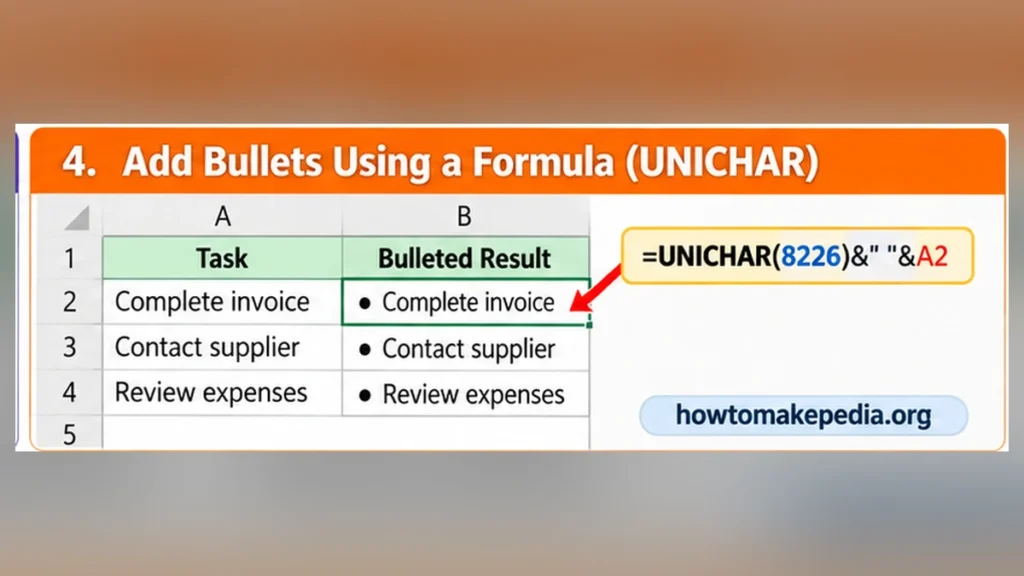
If you already have a list of tasks, a formula can add bullets without manually editing every cell.
Suppose column A contains the following information:
| Cell | Task |
|---|---|
| A2 | Complete invoice |
| A3 | Contact supplier |
| A4 | Review expenses |
Steps to Add Bullets With UNICHAR
- Select cell B2.
- Enter this formula:
=UNICHAR(8226)&" "&A2
- Press Enter.
- Select B2 again.
- Drag the fill handle down to B4.
Your results will look like this:
| Original Text | Formula Result |
|---|---|
| Complete invoice | • Complete invoice |
| Contact supplier | • Contact supplier |
| Review expenses | • Review expenses |
How Does the Formula Work?
The formula contains three parts:
UNICHAR(8226)produces the standard round bullet character.&" "&adds a space after the bullet.A2references the original text.
Excel combines these elements into one result.
Important: The formula doesn’t change the original text in column A. The bulleted version appears in column B.
Add Two Formula-Based Bullets in One Cell
You can also combine two items:
=UNICHAR(8226)&" "&A2&CHAR(10)&UNICHAR(8226)&" "&A3
Here, CHAR(10) inserts a line-break character between the two items.
Enable Wrap Text to display both lines correctly.
Method 6: Create a Bulleted List in an Excel Text Box
Text boxes are useful when you want to place instructions or summary notes outside the regular worksheet grid.
Steps to Create a Bulleted Text Box
- Open the Insert tab.
- Select Text Box.
- Click and drag on the worksheet to create the box.
- Type your list items on separate lines.
- Select the text.
- Right-click the selected text and choose Bullets, if available in your desktop Excel version.
- Adjust the font, spacing, and text-box dimensions.
This method works well for dashboard instructions, meeting notes, and project summaries.
Unlike regular cells, a text box is a separate worksheet object. It isn’t designed for the same sorting and filtering operations as tabular data.
How to Insert Bullets in Excel on Mac
Mac users can create bullet lists, although Windows-specific Alt codes are not the right approach.
The simplest method is to copy and paste the bullet character • into a cell.
You can also use the macOS character viewer to locate a bullet symbol.
For multiple bullet points inside one cell:
- Double-click the cell.
- Insert a bullet and type the first item.
- Press Control + Option + Return to insert a line break.
- Insert another bullet and continue typing.
The UNICHAR formula also works in supported Excel for Mac versions.
How to Insert Bullets in Excel Online
Excel for the web supports cell text, formulas, and basic formatting, but its interface differs from desktop Excel.
A reliable approach is to copy the bullet symbol and paste it into the cell while editing.
You can also use:
=UNICHAR(8226)&" "&A2
For manual line breaks, Excel for the web documents Alt + Enter on Windows while editing a cell.
If your browser intercepts a shortcut or an option isn’t available, try copying and pasting the symbol or opening the workbook in desktop Excel.
How to Add Bullets to Multiple Excel Cells
For a long list, using one task per row is usually easier than placing everything inside one cell.
For example:
| Before | After |
|---|---|
| Review orders | • Review orders |
| Check inventory | • Check inventory |
| Update prices | • Update prices |
If the original values are in A2, enter the UNICHAR formula in B2 and copy it down.
This keeps individual tasks easy to sort, filter, and edit.
How to Format Bullet Points in Excel
A few formatting changes can make your bullet lists easier to read.
- Add one space after each bullet.
- Use a consistent font and font size.
- Align the text to the left.
- Adjust the column width.
- Enable Wrap Text for multiline cells.
- Use AutoFit Row Height when text is cut off.
Format Completed Checklist Tasks
You can also apply strikethrough formatting to tasks you’ve finished.
For example:
• Submit weekly report
• Review next week’s schedule
If you want to mark completed items this way, follow our tutorial on how to strikethrough in Excel. It covers the formatting methods used to cross out text without deleting it.
How to Remove Bullet Points in Excel
The correct removal method depends on how the bullets were inserted.
Remove Manually Inserted Bullets
Double-click the cell, select the bullet character, and delete it. Remove any extra space left behind.
Remove Bullets From Multiple Cells
You can use Find and Replace:
- Select the range containing the bullets.
- Press Ctrl + H on Windows.
- Paste the bullet character into Find what.
- Leave Replace with empty.
- Review the selected range before choosing Replace All.
If the bullets all have a trailing space, you can search for the bullet followed by one space.
Remove Formula-Generated Bullets
Change or remove the formula. If you want to keep the original text, use the source values rather than simply clearing the formula results.
For text-box bullets, use the relevant bullet-formatting option to turn them off.
Why Are Bullet Points Not Working in Excel?
Here are some common problems and their fixes.
| Problem | Solution |
|---|---|
| Alt + 7 isn’t working | Use the numeric keypad, check Num Lock, or try the Symbol menu |
| Bullet displays as an unusual character | Choose a font that supports the symbol |
| Bullets appear on one line | Insert manual line breaks while editing the cell |
| Some lines aren’t visible | Enable Wrap Text and adjust row height |
| Pasted bullets appear in separate cells | Double-click the destination cell before pasting |
| UNICHAR formula returns an error | Check the function spelling, quotation marks, and parentheses |
| Bullets aren’t aligned | Remove extra spaces and use consistent formatting |
Most problems involve keyboard differences, line breaks, or cell formatting rather than the bullet symbol itself.
Bullet Points vs. Numbered Lists in Excel
Bullet points work best when the order of items doesn’t matter.
For example:
• Check emails
• Update records
• Prepare summary
Numbered lists are better when tasks must follow a sequence:
- Collect information
- Review the data
- Submit the report
Excel can store both formats, but regular worksheet cells don’t automatically manage lists the way Word does.
Which Bullet Insertion Method Is Best?
| Method | Best For | Main Limitation |
|---|---|---|
| Alt + 7 | Quick bullet insertion | Requires numeric keypad |
| Symbol menu | Selecting special characters | More steps |
| Copy and paste | Simple lists | Manual editing |
| Multiple bullets in one cell | Compact notes | Requires line breaks |
| UNICHAR formula | Large existing lists | Creates results in separate cells |
| Text box | Dashboards and instructions | Not regular worksheet data |
For most beginners, copying a bullet or using the keyboard shortcut is the easiest choice. For existing lists, the UNICHAR formula is more efficient.
Frequently Asked Questions
How do I insert bullet points in Excel?
Use Alt + 7 on a Windows numeric keypad, insert a bullet through the Symbol menu, or copy and paste the character.
What is the shortcut for bullets in Excel?
Press Alt + 7 using the numeric keypad on supported Windows keyboards.
How do I add bullets without a numeric keypad?
Use Insert > Symbol, copy and paste a bullet, or use the UNICHAR formula.
How do I insert multiple bullets in one Excel cell?
Edit the cell, type the first bullet item, press Alt + Enter on Windows, and repeat for each new line.
How do I create a bullet list in Excel?
You can place one bulleted item in each row or add several items inside one cell using manual line breaks.
Can I insert bullets in Excel on Mac?
Yes. Copy and paste a bullet, use the character viewer, or create bullets with UNICHAR.
Can I insert bullets in Excel Online?
Yes. Copy and paste bullet symbols or use supported formulas.
What is the formula for adding bullets?
Use =UNICHAR(8226)&" "&A2 to place a bullet before the text in A2.
How do I add bullets to existing text?
Edit the existing cell and insert a bullet at the beginning, or generate a bulleted version in another column.
Can I copy bullets from Microsoft Word?
Yes. You can paste Word bullet lists into Excel, although the layout may need adjustment.
How do I remove bullet points?
Delete the symbols manually, use Find and Replace for multiple cells, or modify the formula producing them.
Why is Alt + 7 not working?
Your keyboard may lack a numeric keypad, Num Lock may be disabled, or the keyboard configuration may differ.
How do I make a numbered list in Excel?
Enter numbers before your items or keep the sequence numbers in a separate column. Excel’s fill handle can help generate consecutive numbers.
Conclusion
Adding bullet points in Excel is simple once you choose the right method. Use Alt + 7 or the Symbol menu for individual bullets, manual line breaks for lists inside one cell, and UNICHAR formulas for adding bullets to existing data.
For longer worksheets, keeping one task per row is often easier to manage. Choose the method that fits how you plan to edit, format, and organize your information.
