


To unhide columns in Excel, select the column headers on both sides of the hidden columns, right-click, and choose Unhide. To reveal every hidden column, select the entire worksheet and go to Home > Format > Hide & Unhide > Unhide Columns.
Whether you’re working with an employee list, sales report, or budget spreadsheet, you can restore missing columns without deleting or changing their data. Here are six easy methods, along with shortcuts and troubleshooting tips.
Quick Answer: How to Unhide a Column in Excel
The easiest way is to right-click the surrounding column headers.
- Open your Excel worksheet.
- Find the missing column letter.
- Select the visible columns on either side.
- Right-click the selected column headers.
- Choose Unhide.
For example, suppose your worksheet displays:
Before: A | B | D | E
Column C is hidden.
After: A | B | C | D | E
Excel displays column C again, including its existing values and formulas.
Before restoring a missing column, check whether it is actually hidden.
Excel provides several clues:
- Missing column letters: The headers jump from B to D instead of showing C.
- Double-line boundaries: A double line between adjacent headers can indicate hidden columns.
- Unexpected gaps: Your worksheet appears to skip a field that was previously visible.
- Formula references: Formulas may reference cells in columns you cannot see.
- Outline controls: Plus and minus symbols above the worksheet can indicate grouped columns.
For example, an employee spreadsheet might show Employee Name in column B and Department in column D. If column C contains Employee ID but isn’t visible, it may simply be hidden.
Rows work similarly, except you select row numbers instead of column letters. Read our guide on how to hide rows in Excel to understand row visibility and restoration.
Method 1: Unhide Columns Using Right-Click

The right-click method is usually the easiest option for beginners.
Suppose column C is hidden between columns B and D.
- Open the worksheet containing the hidden column.
- Click the column B header.
- Drag across the headers to column D, selecting the surrounding range.
- Right-click the selected headers.
- Choose Unhide.
Column C should reappear immediately.
Tip: Right-click the actual column headers rather than an unrelated cell. This ensures Excel applies the command to the correct area.
Method 2: Unhide Columns by Double-Clicking
Excel also provides a quick mouse-based method.
- Locate the missing column letters.
- Find the double-line boundary between the visible headers.
- Position your mouse pointer over that boundary.
- Double-click it.
Excel reveals the hidden column or columns at that boundary.
Be sure you’re using the hidden-column indicator rather than the normal border of a visible column, which controls column width.
Method 3: Unhide Columns Using the Home Tab
If the right-click menu is unavailable, use Excel’s Ribbon.
- Select the visible columns surrounding the hidden range.
- Open the Home tab.
- Find the Cells group.
- Click Format.
- Select Hide & Unhide.
- Choose Unhide Columns.
For example, if column F is hidden between E and G, select columns E through G before choosing the command.
This method is especially useful when keyboard shortcuts don’t work.
Method 4: Unhide Columns With Keyboard Shortcuts

Keyboard shortcuts can save time when working with large spreadsheets.
Windows Shortcut
Select the column range containing the hidden columns and press:
Ctrl + Shift + 0
Use the number zero, not the letter O.
If your computer intercepts this shortcut, use the Home tab method instead.
Windows Ribbon Access Keys
Another option in supported desktop versions is:
Alt → H → O → U → L
Press these keys one after another, not simultaneously.
On Windows, Ctrl + Spacebar selects the column containing the active cell. However, you still need to ensure your overall selection includes the hidden area before unhiding it.
Method 5: How to Unhide All Columns in Excel
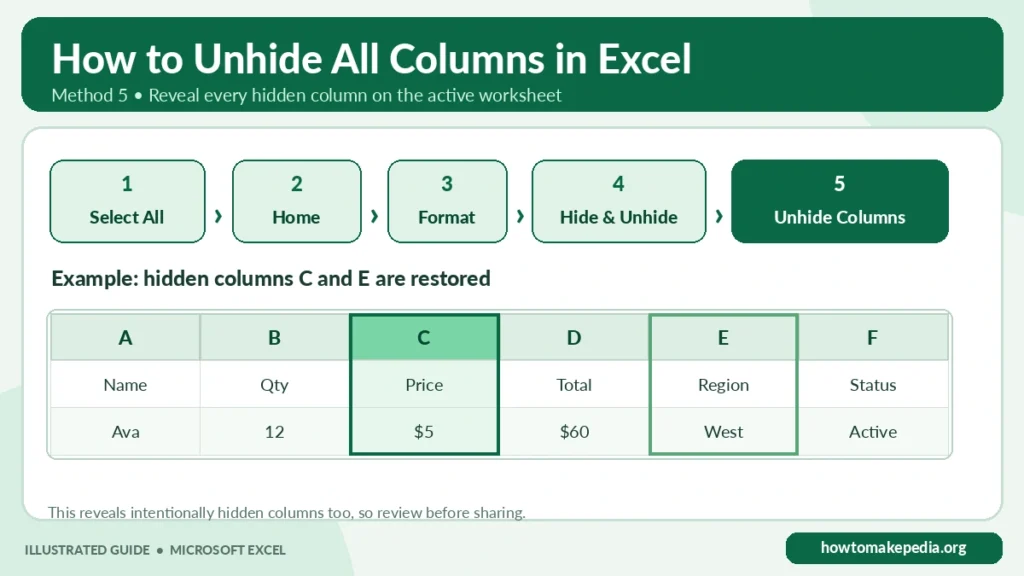
If several columns are hidden across your worksheet, revealing them individually can take time.
To unhide every manually hidden column:
- Open the worksheet.
- Click the Select All button at the upper-left corner, where row numbers and column letters meet.
- Select the Home tab.
- Click Format.
- Choose Hide & Unhide.
- Select Unhide Columns.
Excel restores manually hidden columns throughout the worksheet.
Important: This also reveals columns that someone intentionally concealed for formatting or reporting.
The Select All button is not an “A + 1” keyboard shortcut. It’s the small button at the intersection of the row and column headers.
Method 6: How to Unhide Column A in Excel

Column A can be difficult to restore because there isn’t another column header to its left.
Fortunately, Excel provides several ways to select it.
Option 1: Use the Name Box
- Locate the Name Box to the left of the formula bar.
- Click inside it.
- Type
A1. - Press Enter.
- Open Home > Format > Hide & Unhide.
- Select Unhide Columns.
Column A should become visible again.
Option 2: Use Go To
- Open Home > Find & Select > Go To.
- Type
A1into the Reference box. - Click OK.
- Choose Home > Format > Hide & Unhide > Unhide Columns.
Option 3: Right-Click Column B
In supported Excel versions, right-click the column B header and select Unhide Columns.
If that option doesn’t appear or doesn’t work, use the Name Box method.
How to Unhide Multiple Columns at Once
You don’t need to restore hidden columns individually.
Suppose your worksheet displays:
A | B | F | G
Columns C, D, and E are hidden.
Select the headers from B through F, right-click, and choose Unhide.
All three hidden columns should reappear.
If you have separate hidden groups, such as C through E and H through J, restore each group separately or use the Select All method to reveal every hidden column.
How to Unhide Columns in Excel on Mac
The process is similar in Excel for Mac.
- Open your worksheet.
- Find the missing column letters.
- Select the visible headers on both sides.
- Right-click or Control-click the selection.
- Choose Unhide.
You can also use the Home tab’s Format menu.
Microsoft documents Shift + Command + 0 as an applicable Mac shortcut. Keyboard layouts and system settings can affect shortcut behavior, so the context menu is a reliable alternative.
How to Unhide Columns in Excel Online
In Excel for the web:
- Open your workbook in the browser.
- Locate the missing column headers.
- Select the columns surrounding the hidden range.
- Right-click the selected headers.
- Choose Unhide Columns.
Browser keyboard shortcuts may behave differently from desktop shortcuts. Using the context menu avoids many of these conflicts.
Why Can’t I Unhide Columns in Excel?
If Excel’s Unhide command isn’t working, check the following issues.
1. Wrong Columns Are Selected
Select both visible headers surrounding the hidden area. Selecting an unrelated column may not reveal the missing data.
Use the Name Box to select A1, then choose Unhide Columns.
3. Column Width Is Zero
A column with a width of zero appears hidden.
Select the affected column or range, open Home > Format > Column Width, and enter a positive width, such as 10.
4. Worksheet Protection Is Enabled
A protected sheet may prevent column-formatting changes. Check the Review tab and ask the workbook owner for permission if necessary.
5. Columns Are Grouped
Look for plus (+) symbols above the column headers. Click the appropriate plus button to expand the collapsed group.
6. Shortcut Doesn’t Work
Operating-system settings may interfere with keyboard shortcuts. Use the Ribbon method instead.
7. Wrong Worksheet Is Open
Check the sheet tabs at the bottom of Excel. Hidden columns belong to individual worksheets.
8. Column Is Extremely Narrow
A very narrow column may look hidden. Adjust its width if necessary.
9. Workbook Has Editing Restrictions
Read-only access or restricted permissions may prevent changes. Make sure you have editing access.
These situations may look similar, but they don’t always require the same fix.
| Situation | What It Means | How to Restore |
|---|---|---|
| Hidden columns | Columns are concealed | Select surrounding headers and Unhide |
| Zero-width columns | Column width is set to 0 | Set a positive column width |
| Grouped columns | Outline details are collapsed | Click the plus (+) control |
Grouping and manual hiding can overlap. Removing a group doesn’t necessarily make every previously hidden column visible.
Unhide Columns vs. Recover Deleted Columns
Hidden and deleted columns are not the same.
Hidden columns remain in the worksheet with their existing contents.
Deleted columns have been removed, potentially affecting the data or formulas they contained.
The Unhide command cannot restore deleted contents. If a column was deleted, try Undo immediately or check an available previous workbook version.
There’s another possible explanation when information appears to be missing: someone may have rearranged the worksheet.
If the data was moved rather than hidden, our tutorial on how to move columns in Excel explains how column reordering works.
Does Unhiding Columns Affect Excel Data or Formulas?
Unhiding a column normally changes only its visibility.
Suppose your worksheet contains:
- Column B: Quantity
- Column C: Unit Price
- Column D: Total
Cell D2 contains:
=B2*C2
Even when column C is hidden, this formula can continue calculating using the value in C2.
Unhiding column C simply makes that information visible again.
Specialized functions may handle hidden rows or filtered data differently, but unhiding a standard column doesn’t ordinarily alter its stored values.
How to Unhide Columns Before Printing
Hidden columns may be omitted from printed reports.
Before printing:
- Restore the columns you want included.
- Open File > Print.
- Review the print preview.
- Check the page layout and column visibility.
- Print or export when everything looks correct.
This is useful for reports that contain supporting data normally concealed during everyday work.
Hiding columns is not a secure way to protect confidential information.
Anyone with sufficient access to the workbook may be able to reveal them.
Before sharing a spreadsheet containing employee, customer, or financial details, remove information that recipients shouldn’t receive or create a separate version containing only approved data.
Common Mistakes When Unhiding Excel Columns
Avoid these problems:
- Selecting unrelated column headers.
- Using the letter O instead of zero in Ctrl + Shift + 0.
- Assuming the Select All button is an “A + 1” shortcut.
- Using Windows Ribbon shortcuts on Mac.
- Mistaking collapsed groups for deleted columns.
- Forgetting to check worksheet protection.
- Revealing every hidden column when only one is needed.
- Assuming hidden data is securely protected.
Most unhiding problems come from incorrect selections, formatting restrictions, or confusion between hidden and deleted content.
Frequently Asked Questions
What is the fastest way to unhide columns in Excel?
Select the visible columns surrounding the hidden area, right-click, and choose Unhide.
What is the Excel shortcut to unhide columns?
On Windows, use Ctrl + Shift + 0 after selecting the relevant range.
How do I unhide all columns at once?
Click the Select All button, then choose Home > Format > Hide & Unhide > Unhide Columns.
How do I unhide column A?
Type A1 in the Name Box, press Enter, and use the Unhide Columns command.
Can I unhide columns by double-clicking?
Yes. Double-click the double-line boundary indicating hidden columns.
Why is the Unhide option missing?
You may have selected cells instead of column headers, or your worksheet may have editing restrictions.
Can I unhide multiple columns together?
Yes. Select the entire range between the visible surrounding headers and choose Unhide.
Does unhiding a column delete or change formulas?
No. Unhiding normally restores visibility without changing cell values or formulas.
Can I recover deleted columns using Unhide?
No. Unhide works with existing hidden columns, not deleted content.
Conclusion
Learning how to unhide columns in Excel makes it easier to work with reports, budgets, and large datasets. The simplest method is to select the surrounding column headers, right-click, and choose Unhide.
Windows users can also try Ctrl + Shift + 0, while the Name Box is particularly useful for restoring column A. If a column still won’t appear, check its width, grouping, worksheet protection, and editing permissions.
