


Need to switch two columns in Excel without losing your data? The safest approach is to use Cut and Insert Cut Cells. You can also hold Shift while dragging a column to a new position.
Swapping neighboring columns takes one move. If the columns are farther apart, you’ll need an extra step to keep everything between them in the correct order. Here’s how to do both.
Quick Answer: How to Swap Columns in Excel
To switch two neighboring columns in Excel:
- Select the right-hand column by clicking its letter.
- Press Ctrl + X to cut it.
- Right-click the left-hand column’s letter.
- Choose Insert Cut Cells.
- Check that the columns have exchanged positions.
For example:
Before: Employee ID | Name | Department | Salary
After: Employee ID | Department | Name | Salary
Excel inserts the Department column before Name instead of pasting over existing information.
For two nonadjacent columns, use two insertion moves, as explained below.
What Does Swapping Columns Mean in Excel?
Swapping columns means exchanging the positions of two fields while keeping the other fields in their original relative order.
Suppose a worksheet has five columns:
| A | B | C | D | E |
|---|---|---|---|---|
| Employee ID | Name | Department | Salary | Status |
You want Salary and Name to switch positions.
Your final arrangement should be:
Employee ID | Salary | Department | Name | Status
Notice that Department stays between the two exchanged fields.
Simply moving Salary before Name would produce:
Employee ID | Salary | Name | Department | Status
That’s a column move, not an exact swap.
Remember: Excel’s letters identify worksheet positions. After a swap, the data moves to different letters, so follow the field names when checking your work.
Method 1: Swap Columns Using Cut and Insert Cut Cells

This method works well when you want to rearrange entire columns without replacing their existing data.
Example 1: Swap Two Adjacent Columns
Imagine your employee worksheet contains:
Employee ID | First Name | Department | Salary
You want Department to appear before First Name.
Follow these steps:
- Open the worksheet in Excel.
- Click column C, which contains Department.
- Press Ctrl + X on Windows.
- Right-click column B, which contains First Name.
- Select Insert Cut Cells.
- Review the column order.
Your worksheet now displays:
Employee ID | Department | First Name | Salary
Because the original columns B and C were next to each other, one insertion move completes the swap.
Example 2: Swap Two Nonadjacent Columns
Now suppose your worksheet contains:
| Column | Field |
|---|---|
| A | Employee ID |
| B | Employee Name |
| C | Department |
| D | Salary |
| E | Status |
You want to exchange Employee Name and Salary while leaving Department between them.
Step 1: Move Salary before Employee Name
- Select the original Salary column D.
- Press Ctrl + X.
- Right-click the original Employee Name column B.
- Choose Insert Cut Cells.
The intermediate order is:
Employee ID | Salary | Employee Name | Department | Status
Step 2: Move Employee Name after Department
- Locate Employee Name. It’s now in column C.
- Select that column and press Ctrl + X.
- Right-click Status, currently in column E.
- Choose Insert Cut Cells.
The final order becomes:
Employee ID | Salary | Department | Employee Name | Status
Both selected fields have exchanged positions, and Department remains between them.
This is why it’s better to track the column headers instead of relying on the original letters.
Method 2: Swap Columns Using Shift + Drag

Shift + Drag offers a convenient mouse-based option in supported desktop versions of Excel.
It inserts a selected column at a new position rather than using ordinary drag-and-drop replacement.
Steps to Swap Columns With Shift + Drag
- Select the column you want to reposition.
- Move the mouse pointer to the border of the selected column.
- Wait until the pointer changes to the move pointer.
- Hold down Shift.
- Drag the column to the insertion point before the other column.
- Release the mouse button while still holding Shift.
- Release Shift and inspect the result.
For example, consider:
Product | Quantity | Revenue | Region
Select Region, hold Shift, and drag it to the insertion point before Revenue.
The new order becomes:
Product | Quantity | Region | Revenue
For nonadjacent columns, repeat the insertion process with the other field to complete the exchange.
Warning: Dragging without Shift can replace existing data. If Excel warns that destination cells will be overwritten, cancel the action unless replacing them is intentional.
Method 3: Swap Cell Contents Using a Temporary Helper Column
A temporary helper range is useful when you only need to exchange simple values in a small worksheet.
However, this method is less suitable for complex spreadsheets containing formulas, comments, special formatting, or references.
Example: Exchange Values in Columns B and D
Suppose B2 and D2 contain values you want to exchange, and F2 is empty.
- Save a backup of the workbook.
- Copy B2 into the empty helper range F2.
- Copy D2 into B2.
- Copy the saved values from F2 into D2.
- Confirm that the two original ranges contain the correct values.
- Clear the temporary helper range.
For a values-only exchange, use Paste Values rather than ordinary Paste.
Important: This method exchanges cell contents, not complete worksheet columns. It doesn’t automatically preserve every formula, format, note, or dependency associated with the original ranges.
For a complete column swap, use Method 1 or Method 2 instead.
How to Swap Two Adjacent Columns in Excel
Adjacent columns are easier to exchange because they sit beside each other.
Suppose column B contains Name and column C contains Department.
Before: Name | Department
After: Department | Name
Cut column C and insert it before column B.
That’s all you need. Excel shifts the original Name column to the right.
How to Swap Nonadjacent Columns Without Changing the Middle Columns

When two columns have other columns between them, moving only one column doesn’t produce a true exchange.
Consider this example:
| Stage | Column order |
|---|---|
| Before | A, B, C, D, E |
| After first insertion | A, D, B, C, E |
| After second insertion | A, D, C, B, E |
First, move the original D before B. Then move the original B immediately before E.
The result exchanges the original B and D while preserving C’s position between them.
For large worksheets, write down the desired order before starting. It makes the second move easier to complete correctly.
How to Swap Columns Without Overwriting Data
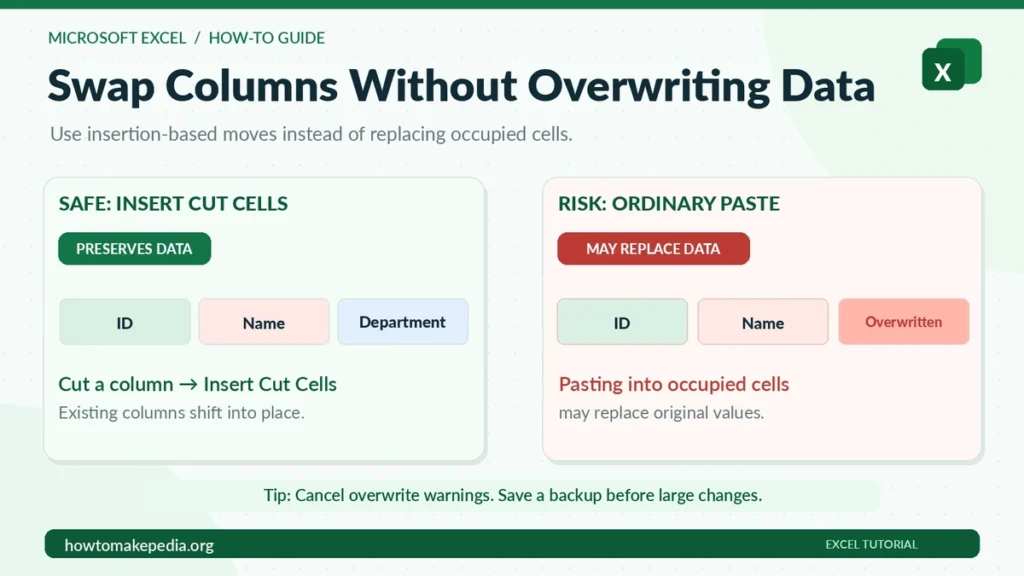
Not every Excel column-moving method handles occupied destination cells the same way.
| Method | Main behavior | Best use |
|---|---|---|
| Cut + Insert Cut Cells | Inserts the moved column | Entire-column swaps |
| Shift + Drag | Moves data into an insertion position | Desktop mouse users |
| Ordinary Cut + Paste | May replace destination contents | Empty destinations |
| Ordinary Drag | May replace existing cells | Moves where replacement is intended |
| Helper Range | Exchanges copied cell contents | Simple values-only data |
Cut and Insert Cut Cells is generally the best starting point because it shifts existing columns instead of directly pasting over them.
Before changing an important workbook, save a backup and check the final data afterward.
If you’re preparing a customer list for reporting, you may also want to learn how to remove duplicates in Excel before finalizing your dataset.
Excel Swap Columns Shortcut
Excel doesn’t provide a universal single keyboard shortcut that directly exchanges any two columns.
However, several shortcuts make the process faster:
| Action | Windows shortcut |
|---|---|
| Select the entire worksheet column | Ctrl + Space |
| Cut a selected column | Ctrl + X |
| Copy a selected column | Ctrl + C |
| Open the context menu | Shift + F10 |
| Undo the last action | Ctrl + Z |
After cutting the column, select the destination and choose Insert Cut Cells.
Don’t confuse Ctrl + V with Insert Cut Cells. Regular pasting may overwrite occupied cells.
How to Swap Columns in Excel on Mac
Excel for Mac also supports column movement through cutting and insertion.
Using Cut and Insert
- Select the column you want to reposition.
- Press Command + X.
- Select the destination column.
- Open its context menu.
- Choose Insert Cut Cells when available.
- Check the resulting order.
You can also hold Shift while dragging a selected column between existing columns.
For two nonadjacent fields, repeat the insertion process as needed.
Press Command + Z to undo a recent unwanted change when available.
How to Swap Columns in Excel Online
Excel for the web supports spreadsheet editing, but its commands and mouse interactions may differ from the desktop application.
To begin:
- Open the workbook in Excel for the web.
- Select the column you want to reposition.
- Cut the column.
- Check the destination column’s context menu for Insert Cut Cells.
- If that option is available, use it and verify the result.
If the command isn’t available, open the workbook in the desktop Excel app for a more predictable insertion workflow.
Avoid pasting directly into an occupied column unless replacing its contents is intentional.
How to Swap Multiple Columns in Excel
You can also move a group of neighboring columns together.
For example:
First Name | Last Name | Email | Department
If you want to move First Name and Last Name as a pair, select both adjacent columns and use Cut and Insert Cut Cells at the appropriate destination.
Excel moves the selected block while keeping its internal order.
However, disconnected columns such as B and D cannot be moved together through standard mouse dragging. Reposition them individually.
Does Swapping Columns Affect Excel Formulas?
Swapping columns can affect formulas and other workbook dependencies.
Excel updates many references during supported column-moving operations, but complex workbooks still need checking.
Pay particular attention to:
- Relative and absolute cell references
- Formulas referencing moved cells
- Named ranges and cross-sheet formulas
- Structured references in Excel Tables
- Charts and connected reports
For example, a formula such as =D2/B2 depends on the data stored in two cells. After exchanging their columns, inspect the formula’s updated references and confirm that its calculation still uses the intended values.
You should also look for errors such as #REF!.
A backup lets you compare results before and after the swap.
Why Can’t I Swap Columns in Excel?
Several common issues can prevent Excel from moving columns correctly.
1. Drag-and-Drop Is Disabled
In Excel for Windows, go to:
File > Options > Advanced > Editing options
Enable Enable fill handle and cell drag-and-drop.
2. You’re Selecting the Wrong Area
Click the column letter to select the entire worksheet column. Dragging the divider between column letters can resize a column instead of moving it.
3. You’re Releasing Shift Too Early
Keep Shift pressed until you’ve released the mouse button.
4. Excel Displays an Overwrite Warning
Cancel the operation. Try Cut and Insert Cut Cells instead.
5. Your Worksheet Is Protected
Protected sheets may restrict editing. If you’re authorized to change protection, review the options under Review.
6. Merged Cells Are Interfering
Merged ranges can prevent some column movements. Check the affected cells before changing the layout.
7. You’re Working Inside an Excel Table
Excel Tables handle columns differently from ordinary worksheet ranges. Select the intended table field and check its available reordering options instead of assuming a whole-sheet operation will behave identically.
8. Some Data Appears Missing
Check whether the workbook contains hidden or filtered information before assuming data was deleted.
Our guide on how to hide rows in Excel explains how row visibility works and how hidden rows can be restored.
Swap Columns vs. Move Columns vs. Copy Columns
These operations have different results.
| Action | What happens |
|---|---|
| Swap | Two fields exchange positions |
| Move | One field changes position while other fields may shift |
| Copy | A duplicate is created and the original stays |
For example, switching Name and Salary while leaving Department between them is a swap.
Moving Salary before Name without correcting the remaining order is only a move.
If your goal is to reposition one field rather than exchange two fields, our guide on how to move columns in Excel explains additional methods step by step.
Common Mistakes When Swapping Excel Columns
Avoid these mistakes:
- Moving only one nonadjacent column: A true swap may require a second insertion.
- Using regular Paste over occupied cells: This can replace important information.
- Ignoring column headers: Field names are more reliable than original worksheet letters.
- Using a helper range containing data: Always confirm the temporary cells are empty.
- Overlooking formulas: Check calculations after rearranging columns.
- Skipping a backup: Save a copy before major structural changes.
Taking a moment to verify the final arrangement can prevent reporting errors later.
Frequently Asked Questions
How do I swap two columns in Excel?
Select one column, cut it, and use Insert Cut Cells at the destination. For nonadjacent columns, repeat the process with the other field to complete the exchange.
How do I swap adjacent columns?
Cut the right-hand column and insert it directly before the left-hand column.
How do I swap columns B and D without changing C?
Move the original D before B. Then move the original B immediately after C.
Can I swap columns without losing data?
Yes. Insertion-based methods are generally preferable to pasting over occupied cells. Save a backup and verify the results afterward.
Can I drag columns to switch their positions?
Yes. In supported desktop versions, hold Shift while dragging to insert the selected column at its new position.
Is there a shortcut for swapping columns?
There isn’t a universal one-step swap shortcut. Ctrl + X helps cut a selected column, but you still need an insertion command.
Can I swap columns without a helper column?
Yes. Cut and Insert Cut Cells and Shift + Drag don’t require a separate helper column.
Can I swap columns in Excel on Mac?
Yes. Use Command + X with Insert Cut Cells, or Shift + Drag where supported.
Can I swap columns in Excel Online?
You can rearrange spreadsheet data, although available commands differ. If the required insertion option is missing, use desktop Excel.
Does swapping columns change formulas?
It can affect references and calculations. Review important formulas, charts, and dependent worksheets after the swap.
Can I swap multiple columns at once?
You can move a contiguous group together. Exchanging nonadjacent fields usually requires separate moves.
Why can’t I drag columns in Excel?
Drag-and-drop may be disabled, the worksheet may be protected, or you may be dragging the wrong part of the selection.
Can I undo a column swap?
Usually, you can press Ctrl + Z on Windows or Command + Z on Mac immediately after an unwanted move, provided the action is still available in Undo history.
Conclusion
Swapping columns in Excel is easier when you understand the difference between moving one field and exchanging two.
For neighboring columns, Cut and Insert Cut Cells usually completes the job in one move. For nonadjacent columns, use a second insertion to preserve the order of the fields between them.
Shift + Drag is another useful desktop option. Whichever method you choose, verify the final column order and formulas before saving your changes.
