


To hide a column in Excel, click its column letter, right-click the selected header, and choose Hide. The column disappears from view, but its information stays in the worksheet.
You can also hide multiple columns, use keyboard shortcuts, or group columns to keep large spreadsheets organized. Here’s how each method works, along with the steps to bring hidden columns back.
Quick Answer: How to Hide a Column in Excel
The easiest way to hide a column is through the right-click menu.
- Open your Excel worksheet.
- Find the column you want to hide.
- Click the column letter at the top.
- Right-click the selected column header.
- Choose Hide.
For example, if you hide column C, the visible column letters change from A, B, C, D to A, B, D.
Column C hasn’t been deleted. Its contents are simply hidden.
What Happens When You Hide a Column in Excel?
Hiding a column removes it from the visible worksheet without deleting its data, formulas, or formatting.
Imagine you’re working with an employee report containing these fields:
| Column | Information |
|---|---|
| A | Employee ID |
| B | Employee Name |
| C | Department |
| D | Internal Code |
| E | Salary |
| F | Employment Status |
You might hide column D because the internal codes aren’t needed during a meeting.
The remaining columns stay visible, and the information in D remains available when you need it.
Hiding columns is useful for simplifying reports, removing temporary clutter, and keeping supporting calculations out of sight.
It works differently from hiding horizontal sections. If you need to conceal entire records instead, read our guide on how to hide rows in Excel.
Remember that hiding a column doesn’t protect confidential information. Anyone with sufficient workbook access may be able to reveal it.
Method 1: Hide Columns Using Right-Click

Right-clicking is the simplest method for most Excel users.
Step-by-Step Instructions
- Open the worksheet containing your data.
- Locate the column you want to hide.
- Click its letter to select the entire column.
- Right-click the selected header.
- Choose Hide.
- Check that the column letter disappears.
Example: Hide Column D
Suppose column D contains internal calculations that you don’t need to see.
Click D, right-click, and select Hide.
Excel now displays column C directly beside column E.
Your formulas and values in column D remain intact.
To bring D back, select columns C through E, right-click the selected headers, and choose Unhide.
Method 2: Hide Columns Using the Home Tab
Excel also provides a Hide Columns command on the Ribbon.
Steps
- Select the column you want to hide.
- Click the Home tab.
- Find the Cells group.
- Click Format.
- Open Hide & Unhide.
- Select Hide Columns.
The selected column disappears immediately.
This method is useful when you’re learning Excel’s menu commands or prefer not to use the right-click menu.
To restore the column, select the appropriate surrounding columns and use Home > Format > Hide & Unhide > Unhide Columns.
Method 3: Hide Columns With a Keyboard Shortcut

If you frequently manage spreadsheets, keyboard shortcuts can make the process faster.
In Excel for Windows, the hide-column shortcut is:
Ctrl + 0
The final key is the number zero, not the letter O.
How to Use the Shortcut
- Select a cell in the column you want to hide.
- Press Ctrl + Spacebar to select the entire column.
- Press Ctrl + 0.
- Check that the column is hidden.
You can also select the column header directly before pressing Ctrl + 0.
Useful Excel Column Shortcuts
| Action | Windows Shortcut |
|---|---|
| Select an entire column | Ctrl + Spacebar |
| Hide selected columns | Ctrl + 0 |
| Unhide selected hidden columns | Ctrl + Shift + 0 |
For the unhide shortcut, first select a range containing the hidden columns.
Some Windows keyboard configurations interfere with Ctrl + Shift + 0. If the shortcut doesn’t work, use the Home tab or right-click method instead.
Method 4: Hide Multiple Columns in Excel
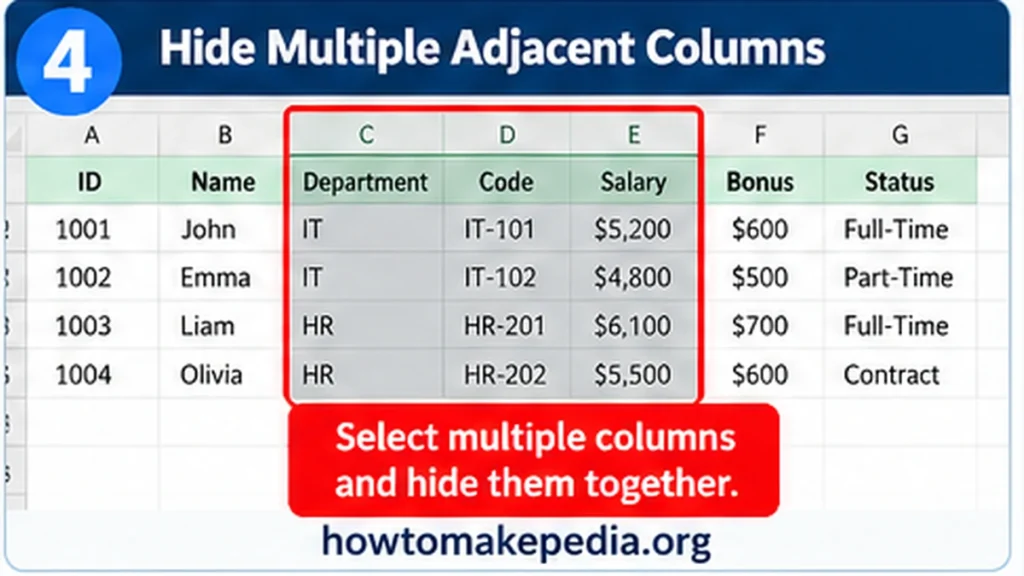
You don’t need to hide columns individually. Excel lets you hide several columns at once.
How to Hide Adjacent Columns
Suppose you want to hide columns C, D, E, and F.
- Click column C.
- Hold the Shift key.
- Click column F.
- Release Shift.
- Right-click the selected headers.
- Choose Hide.
All four columns disappear.
You’ll now see column B followed by column G.
How to Hide Nonadjacent Columns
Sometimes the columns you want to hide are separated by information you want to keep.
For example, you might want to hide B, D, and F while leaving A, C, E, and G visible.
In Excel for Windows:
- Click the B column header.
- Hold Ctrl.
- Click column D.
- Click column F.
- Release Ctrl.
- Right-click one of the selected headers and choose Hide.
Excel hides only the selected columns.
This technique works well when a spreadsheet contains several unrelated fields you don’t need in the current view.
Method 5: Group Columns to Hide and Show Them Easily
Grouping is helpful when you need to hide and display the same columns repeatedly.
For example, a monthly financial report might contain detailed calculations in columns C through F, followed by a summary in column G.
Instead of manually hiding those calculation columns every time, you can group them.
How to Group Columns
- Select columns C through F.
- Open the Data tab.
- Find the Outline group.
- Click Group.
- Confirm the column grouping if prompted.
- Click the minus (-) outline button to collapse the group.
- Click the plus (+) button to expand it.
Hide vs. Group Columns
| Feature | Hide | Group |
|---|---|---|
| Conceals columns | Yes | Yes, when collapsed |
| Displays expand/collapse buttons | No | Yes |
| Easy to repeatedly expand | Requires Unhide | Click plus |
| Best use | Temporary concealment | Repeated report summaries |
Use ordinary hiding when you only need to remove columns occasionally. Choose grouping when readers need quick access to detailed sections.
If you remove an outline while its columns are collapsed, those columns may remain hidden and require manual unhiding.
How to Hide Unused Columns in Excel
Extra blank columns can make worksheets look unnecessarily wide.
Suppose your report ends at column H, and everything beyond it is unused.
You can hide the empty columns to focus on the report.
Steps
- Confirm that column H contains your final required information.
- Identify the unused columns beginning with I.
- Select only the unused column range you want to conceal.
- Right-click the selection.
- Choose Hide.
- Check that no important information disappeared.
For large, confirmed-empty ranges, the Name Box can help you select specific columns without scrolling.
Avoid hiding thousands of columns unless necessary. It can make navigation and future workbook editing inconvenient.
How to Unhide Columns in Excel
When a column is hidden, its letter disappears from the worksheet.
If column C is hidden, the visible letters jump from B to D.
There are several ways to restore it.
Method 1: Unhide With Right-Click
- Select the column headers surrounding the hidden column, such as B through D.
- Right-click the selection.
- Choose Unhide.
- Confirm that column C appears.
Method 2: Unhide Using the Home Tab
Select the surrounding columns, then go to:
Home > Format > Hide & Unhide > Unhide Columns
Excel may display a double-line indicator between the visible column headers.
Double-click that boundary to restore the hidden column.
Method 4: Use the Keyboard Shortcut
On Windows, select the surrounding column range and press:
Ctrl + Shift + 0
If the shortcut doesn’t respond, use the Ribbon method.
How to Unhide Column A in Excel

Restoring column A can be confusing because there’s no visible column header to its left.
The Name Box provides a reliable solution.
Steps to Unhide Column A
- Find the Name Box to the left of the Formula Bar.
- Type
A1. - Press Enter.
- Open the Home tab.
- Click Format.
- Select Hide & Unhide.
- Choose Unhide Columns.
Column A should return.
You can also try right-clicking the B column header and choosing Unhide Columns when that option appears.
The Name Box method is especially useful when you want to avoid revealing other intentionally hidden columns.
How to Unhide All Columns in Excel
If multiple columns are hidden throughout a worksheet, you can reveal them together.
- Click the Select All button in the worksheet’s upper-left corner.
- Open Home.
- Click Format.
- Select Hide & Unhide.
- Choose Unhide Columns.
Excel restores manually hidden columns in the active worksheet.
Review the result afterward. Some columns may have been hidden intentionally, and collapsed groups might still require expanding.
How to Hide Columns in Excel on Mac
Excel for Mac supports column hiding through the right-click menu and Ribbon.
To hide a column, select its letter, open the context menu, and choose Hide.
To restore a hidden column, select its surrounding headers and choose Unhide.
Supported Mac versions also provide keyboard shortcuts, including Command + 0 to hide selected columns and Command + Shift + 0 to unhide them.
Keyboard layouts and Excel versions can affect shortcut behavior, so use the menu commands when necessary.
How to Hide Columns in Excel Online
Excel for the web also supports hiding and unhiding columns.
- Open the workbook in your browser.
- Select the column header.
- Right-click the selected column.
- Choose Hide.
To unhide a column, select the visible column headers surrounding its position, right-click, and choose Unhide.
The browser interface may look slightly different from desktop Excel, and some keyboard shortcuts can conflict with browser commands.
Why Can’t I Unhide Columns in Excel?
If a column refuses to reappear, check these common problems.
1. You’ve Selected the Wrong Columns
Select the visible column headers on both sides of the hidden range before choosing Unhide.
Type A1 into the Name Box, press Enter, and use Home > Format > Hide & Unhide > Unhide Columns.
3. The Column Width Is Zero
A zero-width column behaves like a hidden column.
Select the affected column or range and use Home > Format > Column Width to enter a positive width.
4. The Worksheet Is Protected
Worksheet protection can prevent changes to column formatting.
If you have permission, review the protection settings before trying again.
5. The Columns Are Grouped
Look for a plus (+) outline button above the column headers. Click it to expand the group.
6. The Shortcut Doesn’t Work
Keyboard conflicts can stop Ctrl + Shift + 0 from working. Use the Ribbon’s Unhide Columns command instead.
7. The Column Is Extremely Narrow
A very narrow column isn’t necessarily hidden. Try increasing its width.
8. You’re on the Wrong Worksheet
Check the active sheet tab. Hidden columns belong to a specific worksheet.
Hiding and deleting columns are different operations.
| Feature | Hidden Columns | Deleted Columns |
|---|---|---|
| Original data remains | Yes | No, unless recovered |
| Reversible using Unhide | Yes | No |
| Column disappears from view | Yes | Yes |
| Changes worksheet structure | No | Yes |
| Can affect formulas | Data remains available | References may change |
| Best use | Temporarily simplifying a sheet | Permanently removing fields |
If your goal is to change where a column appears rather than hide it, follow our guide on how to move columns in Excel.
Moving columns rearranges information, while hiding changes only what you can see.
Does Hiding Columns Affect Formulas?
Hiding a column doesn’t normally stop Excel formulas from using its data.
Suppose:
- Column B contains Quantity.
- Column C contains Price.
- Column D contains Total.
Cell D2 uses this formula:
=B2*C2
If you hide column C, Excel still uses the price in C2 to calculate the total.
However, functions designed to treat hidden or filtered data differently may need additional review.
Hidden columns generally don’t appear in the printed worksheet.
Before printing:
- Open File > Print.
- Review the Print Preview.
- Check which columns appear.
- Make adjustments before printing.
This can be useful for producing a shorter report without deleting supporting calculations.
Is Hiding Columns in Excel Secure?
No. Hiding columns is a visibility feature, not a security measure.
Someone who can edit the workbook may be able to reveal the hidden data.
Before sharing confidential reports, remove any fields recipients shouldn’t access or create a separate workbook containing only approved information.
Don’t rely on hiding columns to protect salaries, private contact details, or sensitive account data.
Common Mistakes When Hiding Columns
A few small mistakes can create confusion:
- Selecting individual cells instead of the intended column headers.
- Pressing Ctrl + O instead of Ctrl + 0.
- Forgetting where hidden columns are located.
- Confusing hiding with deleting.
- Assuming hidden data is protected.
- Trying to unhide a column without selecting the surrounding range.
- Mistaking a collapsed group for a manually hidden column.
- Assuming Windows shortcuts work the same way on Mac.
Always inspect the worksheet after hiding or unhiding columns.
Frequently Asked Questions
How do I hide a column in Excel?
Click the column letter, right-click the header, and choose Hide.
What is the shortcut to hide columns in Excel?
In Excel for Windows, press Ctrl + 0 to hide the selected columns.
How do I hide multiple columns at once?
Select the column headers together, right-click, and choose Hide. Use Ctrl on Windows to select nonadjacent columns.
Select the visible columns surrounding the hidden range, right-click, and choose Unhide.
How do I unhide column A?
Enter A1 in the Name Box and use Home > Format > Hide & Unhide > Unhide Columns.
Does hiding a column delete its data?
No. Hiding changes only visibility. The original values and formulas remain in the worksheet.
Yes. Users with sufficient access to the workbook may be able to reveal hidden columns.
Normally, hidden columns are omitted from the printed worksheet. Always check Print Preview.
Conclusion
Hiding columns in Excel is an easy way to clean up a worksheet without deleting important data. Right-click and choose Hide for the quickest method, or use Ctrl + 0 on Windows.
When you need the information again, select the surrounding column headers and choose Unhide. For reports that require frequent expanding and collapsing, grouping is a better option.
Remember that hiding columns changes visibility, not data security.
