
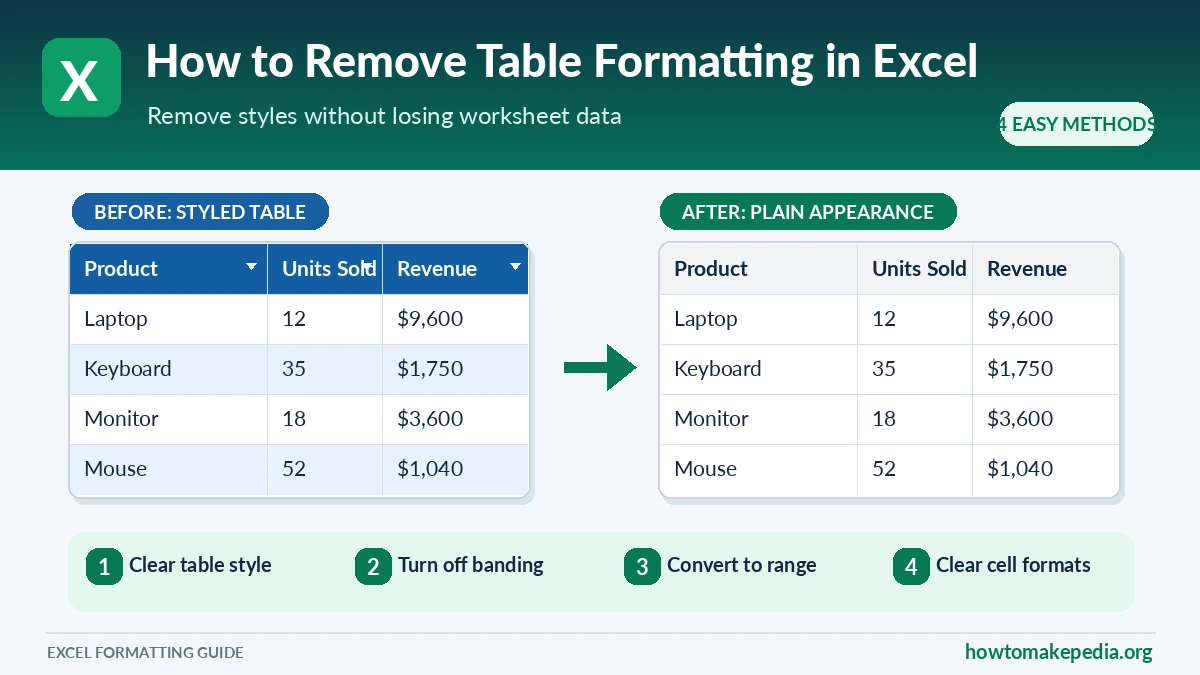

To remove table formatting in Excel without deleting your data, click anywhere inside the table, open Table Design, expand the Table Styles gallery, and select Clear. This removes the applied table style while keeping the Excel Table.
If you want to remove the table itself, use Convert to Range instead. The right method depends on whether you want to keep filters, formulas, and other table features.
Quick Answer: Which Method Should You Use?
Excel offers several ways to change or remove table formatting. Here’s how to choose the right one.
| Your Goal | Excel Command | What It Preserves |
|---|---|---|
| Remove colored table styling | Table Styles > Clear | Data and table functionality |
| Remove alternating row colors | Uncheck Banded Rows | Table structure and features |
| Turn a table into regular cells | Convert to Range | Data and existing cell formatting |
| Remove leftover cell formatting | Home > Clear > Clear Formats | Values and formulas |
Quick tip: If you only dislike the table’s blue or green colors, start by clearing the table style. There’s no need to convert the table into a normal range.
What Is Table Formatting in Excel?
Table formatting controls how information looks inside an Excel Table.
When you turn a range into a table using Insert > Table, Excel can apply several features:
- Colored header rows
- Alternating row and column shading
- Borders and font formatting
- Filter and sorting controls
- Automatic table expansion
- Calculated columns and structured references
- An optional Total Row
Some of these features affect appearance, while others control how the table works.
For example, imagine a monthly sales report:
| Product | Units Sold | Revenue |
|---|---|---|
| Laptop | 12 | $9,600 |
| Keyboard | 35 | $1,750 |
| Monitor | 18 | $3,600 |
Excel might display this information with a dark-blue header and alternating light-blue rows.
You can remove those colors without changing the underlying sales information.
However, removing the Excel Table structure is a different operation.
Before Removing Table Formatting: Protect Your Data
Before changing an important worksheet, save a copy of the workbook.
Next, determine whether your colored data is an actual Excel Table or simply a range with manually applied formatting.
Click a cell inside the data. In desktop Excel, an actual table normally displays a contextual Table Design tab on Windows or a Table tab on Mac.
Also check whether your workbook uses table filters, formulas, or a Total Row.
If you still need those features, removing the style is usually the safest choice.
Method 1: Remove Table Style Without Deleting the Table
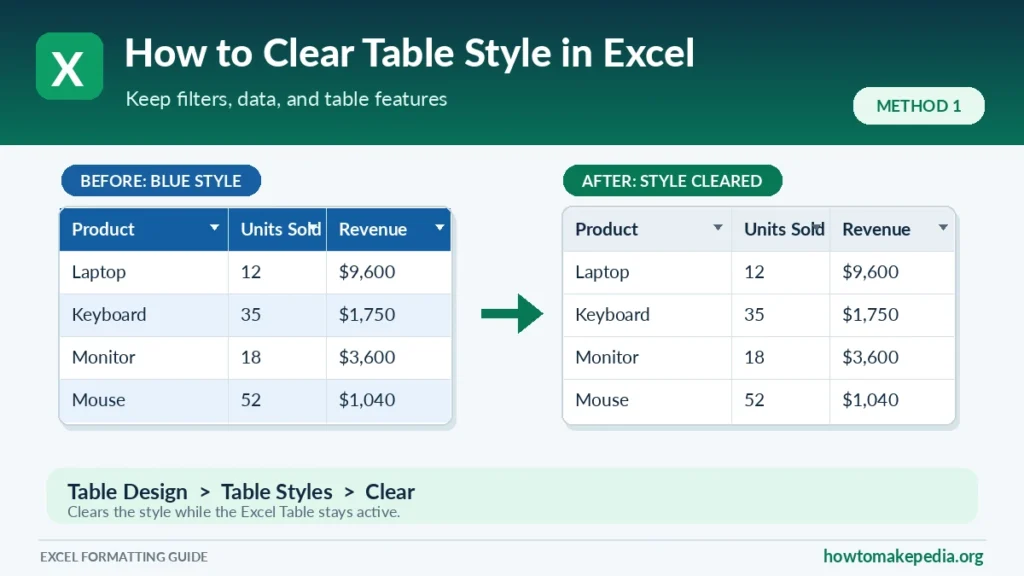
This is the best method when you want to remove table colors while keeping the table’s functionality.
Step-by-Step Instructions
- Open your workbook in Microsoft Excel.
- Click any cell inside the formatted table.
- Select the Table Design tab on the Ribbon.
- Find the Table Styles group.
- Click the More arrow to expand the style gallery.
- Select Clear.
- Review the table’s new appearance.
Excel removes the selected table style and displays the table in its default format.
Your data and formulas stay in place.
More importantly, the range remains an Excel Table, so you can continue using filtering, sorting, structured references, and automatic expansion.
What Happens After Clearing the Table Style?
Suppose your sales report has a blue header and alternating blue rows.
After selecting Clear, the built-in style disappears or changes to Excel’s default table appearance.
However, manually applied fill colors, borders, and conditional formatting may still appear.
This is normal. Clearing a table style doesn’t guarantee that every cell format will disappear.
Best for: Removing unwanted table colors without sacrificing table features.
Method 2: Remove Banded Rows and Alternating Colors in Excel
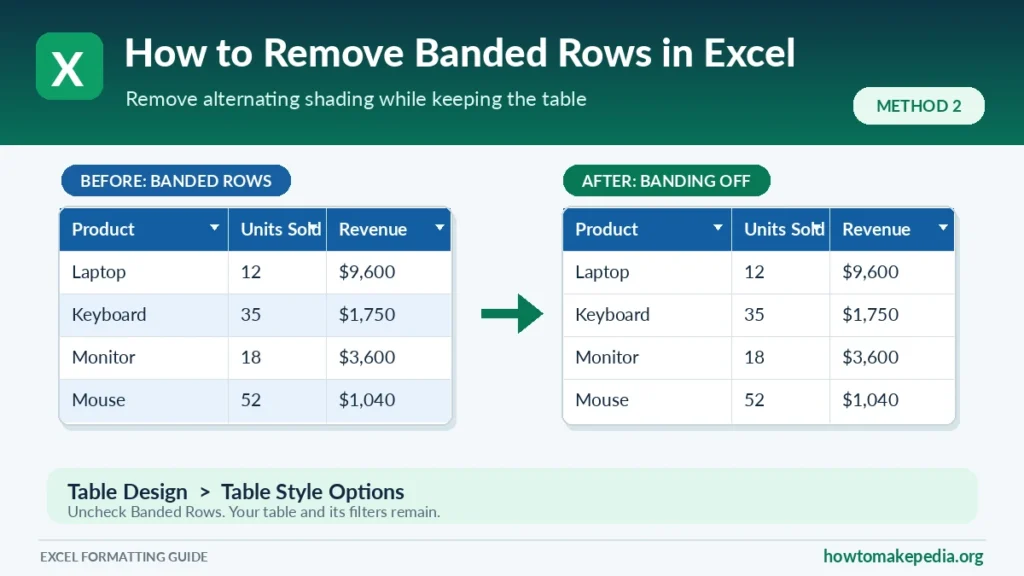
Sometimes the table style looks fine, but the alternating row colors are distracting.
You don’t need to remove the entire style to fix this.
How to Turn Off Banded Rows
- Click anywhere inside your Excel Table.
- Open Table Design.
- Find the Table Style Options group.
- Uncheck Banded Rows.
- Review the table.
Excel removes the alternating row shading controlled by that option.
Your table remains active, and its data doesn’t change.
Before and After Example
| Before | After |
|---|---|
| Rows alternate between white and light blue | Rows no longer use the style’s alternating shading |
| Header keeps its selected table style | Header keeps its selected table style |
| Table filters are available | Table filters remain available |
You can also turn off Banded Columns if your selected table style uses alternating column colors.
Avoid turning off options such as Total Row or Filter Button unless you actually want to change those features.
Best for: Removing striped rows while keeping the rest of the table design.
Method 3: Convert an Excel Table to a Normal Range
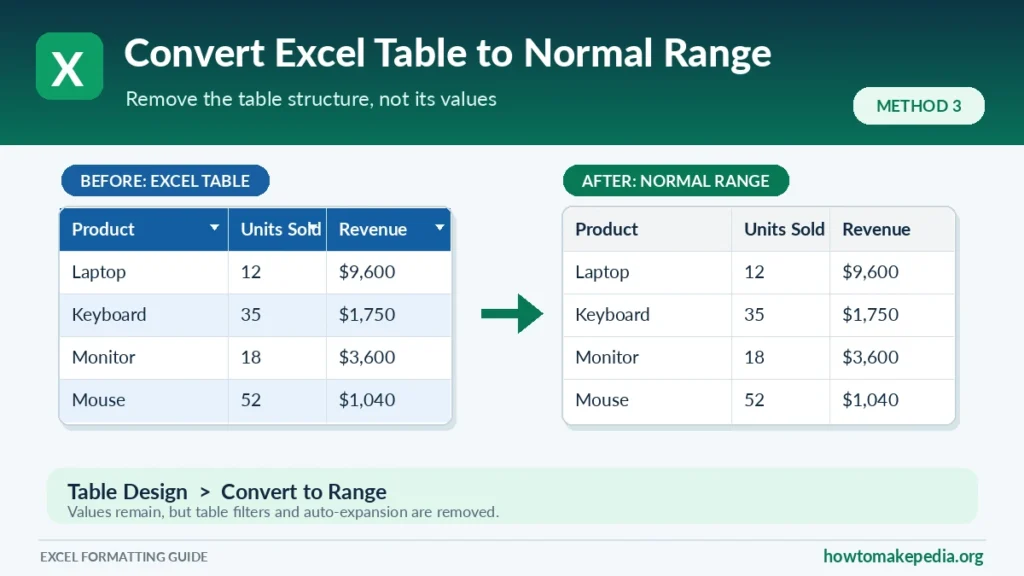
If you no longer need Excel Table functionality, you can convert the table back into ordinary worksheet cells.
Unlike the previous methods, this changes the structure of your data range.
How to Convert a Table to a Range
- Open your Excel workbook.
- Click any cell inside the table.
- Select Table Design.
- Find the Tools group.
- Click Convert to Range.
- Confirm the conversion when Excel asks.
- Review the worksheet.
Excel keeps the existing data in its cells but removes the Excel Table object.
What Happens When You Convert a Table?
After conversion:
- The table’s built-in filter buttons disappear.
- The range no longer expands automatically as a table.
- Table-specific style controls become unavailable.
- Structured references in formulas can change into ordinary cell references.
- The table’s Total Row functionality is removed.
Existing colors, borders, and other cell formatting may remain.
Important: Convert to Range does not automatically remove every color or create completely unformatted cells.
Alternative: Convert to Range Using Right-Click
You can perform the same conversion without using the Ribbon.
Right-click a cell inside the table, select Table > Convert to Range, and confirm the action.
Both approaches perform the same operation.
Best for: Keeping your worksheet data while removing Excel Table functionality.
Method 4: Clear All Formatting From the Former Table Range
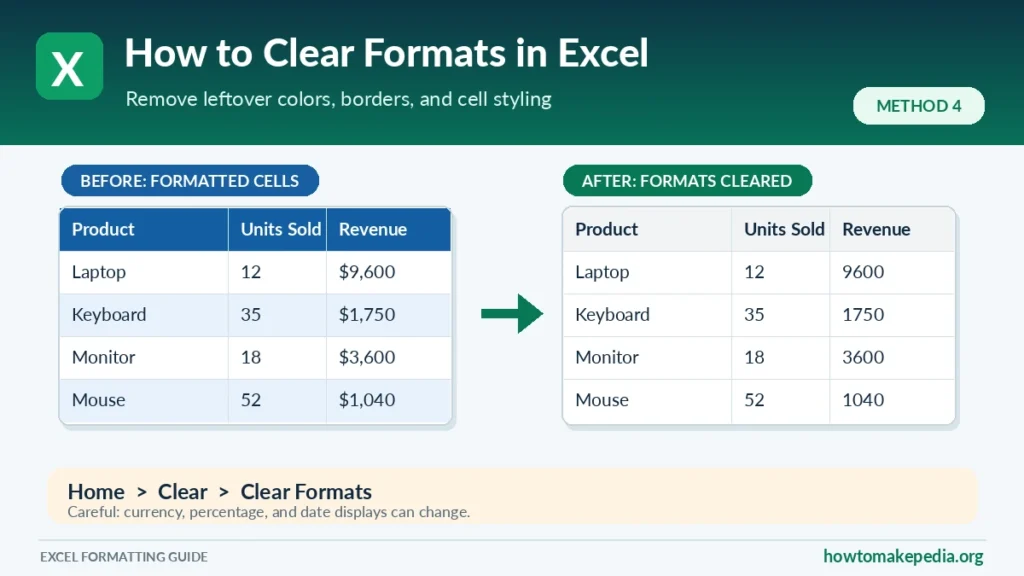
If you converted a table to a normal range but the colors are still showing, use Excel’s Clear Formats command.
This removes cell formatting without intentionally deleting the stored values or formulas.
How to Clear Formats in Excel
- Select the cells containing the unwanted formatting.
- Open the Home tab.
- Find the Editing group.
- Click the Clear dropdown.
- Select Clear Formats.
- Review your worksheet.
Excel removes formatting attributes such as fill colors, borders, font styles, alignment, and number formats.
Be Careful With Dates, Currency, and Percentages
Suppose a sales amount displays as $1,250.00.
After clearing formats, Excel may show 1250 instead.
Similarly, a date may appear as its underlying serial number, while a percentage such as 25% may display as 0.25.
The underlying numeric values haven’t necessarily changed. Their display formats have.
If you only want to remove blue shading, consider changing the fill color instead of clearing every format.
Improve Your Worksheet After Clearing Formats
Once you’ve removed unwanted formatting, you may need to make the worksheet easier to read again.
For long descriptions or comments, our guide on how to wrap text in Excel explains how to display multiple lines inside the same cell.
If text is cut off vertically, learn how to increase row height in Excel to adjust the spacing without changing your data.
Best for: Removing leftover formatting from a normal cell range.
How to Remove Table Formatting Without Losing Data
Removing table formatting doesn’t have to mean removing information.
Choose the method that matches your goal:
Scenario 1: Keep the table but remove colors.
Use Table Styles > Clear.
Scenario 2: Remove alternating row shading.
Turn off Banded Rows.
Scenario 3: Keep the data but remove table functionality.
Use Convert to Range.
Scenario 4: Remove table features and all leftover cell formatting.
Convert to Range first, then use Clear Formats if necessary.
Remember that Clear Formats can change how dates, percentages, and currency values appear.
How to Remove Table Formatting but Keep Filters
If your worksheet contains customer records, sales data, or inventory information, filter buttons may be essential.
The simplest way to remove unwanted styling while keeping those controls is to clear the table style.
Select a table cell, open Table Design, expand Table Styles, and choose Clear.
The table remains available for filtering and sorting.
If you convert it to a normal range instead, its table-specific filter buttons disappear. You can apply ordinary filtering separately through Data > Filter when needed.
How to Remove Table Formatting but Keep Formulas
Removing a table style doesn’t ordinarily change the formulas stored in your cells.
Converting a table to a range requires more care because formulas using structured references may be rewritten with normal cell references.
For example, a formula using a named table column might look like this:
=SUM(Sales[Revenue])
After converting that table to a range, Excel may replace the structured column reference with an ordinary cell-range reference.
The result may initially remain the same, but future rows won’t automatically become part of the former table.
Check important formulas after conversion, especially those used in financial reports or calculations that depend on expanding tables.
For additional help with basic calculations, see our guide on how to sum in Excel.
Remove Table Style vs. Convert to Range vs. Clear Formats
| Operation | Removes Visual Style? | Keeps Excel Table? | Keeps Cell Values? |
|---|---|---|---|
| Clear Table Style | Removes the applied table style | Yes | Yes |
| Turn Off Banded Rows | Removes style-based row banding | Yes | Yes |
| Convert to Range | Not necessarily | No | Yes |
| Clear Formats | Removes cell formatting | Does not remove the table object | Yes |
For a simple visual change, clearing the table style is usually the most practical choice.
How to Remove Table Formatting in Excel on Mac
Excel for Mac uses similar formatting tools, although the Ribbon labels aren’t always identical to Windows.
To remove a table style:
- Open the workbook.
- Click a cell inside the Excel Table.
- Select the Table tab.
- Expand the Table Styles gallery.
- Choose Clear.
To remove table functionality, select the Table tab and choose Convert to Range, then confirm.
If you only need to remove ordinary cell formatting, select the affected cells and use the available Clear Formats command from the Home tab.
How to Remove Table Formatting in Excel Online
Excel for the web has a different interface from desktop Excel.
You can work with table formatting options, but some controls appear in different places or aren’t available in the same form.
Select the table and look for the available Format as Table controls to change its appearance.
For conversion, Microsoft’s documentation also describes a right-click option: Table > Convert to Range. Availability and menu placement can vary by interface.
If the command isn’t available, open the workbook in desktop Excel instead.
Avoid assuming that every Windows Ribbon instruction will work identically in a web browser.
Why Is the Table Design Tab Missing in Excel?
If you can’t find Table Design, check these possibilities.
1. You’re Outside the Table
Click a cell inside the actual Excel Table rather than an empty worksheet cell.
2. Your Data Is an Ordinary Range
A range can have colored headers and borders without being an Excel Table.
Manually formatted ranges don’t display the same table-specific controls.
3. You Already Converted the Table
After Convert to Range, the table-specific tab no longer appears for that range.
4. You’re Working With a PivotTable
PivotTables use different tools. Their formatting options aren’t identical to those for standard Excel Tables.
5. You’re Using Excel Online
The web interface doesn’t provide the same contextual Table Tools Ribbon as desktop Excel.
Why Are Table Colors Still Showing After Removing Formatting?
Several different formatting features can make colors remain.
The Table Was Converted to a Range
Convert to Range removes table functionality but can leave existing cell colors intact.
Select the former table range and use Clear Formats if you want to remove its cell formatting.
Manual Formatting Was Applied
Someone may have manually added fill colors or borders.
Clearing the table style doesn’t necessarily remove those changes. Remove the unwanted cell formatting separately.
Banded Rows Are Still Enabled
If the table remains active, check Table Design > Table Style Options and turn off Banded Rows.
Conditional Formatting Controls the Colors
Alternating colors or highlighted cells may come from conditional formatting rules.
Open Home > Conditional Formatting > Manage Rules to inspect them.
Only remove rules that you no longer need.
The Wrong Cells Were Selected
If only part of the worksheet changed, select the complete intended range and repeat the appropriate formatting command.
How to Remove Conditional Formatting From an Excel Range
Conditional formatting changes the appearance of cells based on rules.
For example, your worksheet might highlight sales figures below a target or display alternating colors using a formula.
To remove unwanted rules:
- Select the affected cells.
- Open Home > Conditional Formatting.
- Choose Manage Rules to review the existing rules.
- If a rule isn’t needed, remove it individually.
- Alternatively, choose Clear Rules > Clear Rules from Selected Cells when you want to remove all rules affecting that selection.
Be careful with worksheets that use colors to indicate overdue payments, missing information, or important deadlines.
Does Removing Table Formatting Delete Data?
Not when you use the appropriate formatting command.
However, Excel’s Clear menu contains several commands with different results.
| Command | What It Does |
|---|---|
| Clear Table Style | Removes the applied table style |
| Convert to Range | Removes Excel Table functionality |
| Clear Formats | Removes cell formatting |
| Clear Contents | Removes cell values and formulas |
| Clear All | Removes contents and formatting, among other cell information |
| Delete Cells | Can remove cells and shift other cells |
If you only want to remove formatting, avoid Clear All or Clear Contents.
How to Restore Table Formatting in Excel
If the Excel Table still exists, restoring its appearance is straightforward.
Click a table cell, open Table Design, and choose a style from the Table Styles gallery.
If you previously converted the table into a normal range, you’ll need to recreate the table.
Select the data, choose Insert > Table, confirm the range and whether your data has headers, and select a style.
Review any formulas and filtering settings afterward.
You can also use Undo immediately after a mistaken change when that action is still available in Excel’s Undo history.
Reorganize the Worksheet After Formatting
Removing unwanted colors can also be a good opportunity to improve the layout.
For example, you might want to put the Date column before Revenue in a sales report.
Our tutorial on how to move columns in Excel explains how to rearrange worksheet information while avoiding accidental overwrites.
If you’re working with a task tracker, you can also learn how to strikethrough in Excel to mark completed tasks without deleting them.
These are separate formatting and organization features, so you don’t need to remove an entire Excel Table to use them.
Common Mistakes When Removing Excel Table Formatting
Here are a few mistakes worth avoiding.
- Converting the table unnecessarily: Use Clear Table Style when you only want to remove colors.
- Choosing Clear All: This can delete the data and formulas you’re trying to preserve.
- Expecting Convert to Range to erase colors: Existing formatting can remain.
- Overlooking number formats: Clear Formats can affect currency, percentage, and date displays.
- Ignoring conditional formatting: Rules may continue applying colors independently of the table style.
- Forgetting formulas: Check structured references before changing table functionality.
- Removing filters accidentally: Keep the table if you still rely on its filtering tools.
- Skipping a backup: Save a copy before significant structural changes.
Frequently Asked Questions
1. How do I remove table formatting in Excel?
Select a table cell, open Table Design, expand Table Styles, and choose Clear.
2. Can I remove table formatting without deleting data?
Yes. Clearing a table style and converting a table to a range preserve the underlying cell values.
3. How do I remove a table style but keep the table?
Use Table Design > Table Styles > Clear. The Excel Table remains active.
4. How do I turn an Excel Table into a normal range?
Select a table cell and choose Table Design > Convert to Range in desktop Excel.
5. Why does formatting remain after Convert to Range?
Because converting the table removes its structure, not necessarily the cell formatting.
6. How do I remove alternating row colors?
Open Table Design and uncheck Banded Rows under Table Style Options.
7. Can I remove table colors but keep filters?
Yes. Clear the table style without converting the table into a normal range.
8. Does Clear Formats delete formulas?
No. It clears formatting rather than intentionally removing formulas or stored values.
9. What is the difference between Clear Formats and Clear All?
Clear Formats removes formatting. Clear All also removes cell contents and other information.
10. How do I remove table formatting on Mac?
Select the table, open the Table tab, expand its style gallery, and choose Clear.
11. Can I remove table formatting in Excel Online?
Yes, some appearance controls are available, although the commands and limitations differ from desktop Excel.
12. Why can’t I find Table Design?
You may have selected an ordinary range, clicked outside the table, converted it already, or opened the workbook in Excel Online.
13. Does Convert to Range affect structured references?
Yes. Excel can replace structured table references in formulas with regular cell references.
14. How do I restore a table after conversion?
Select the data and choose Insert > Table, then confirm the headers and reapply a table style.
15. How can I remove conditional formatting from a table?
Go to Home > Conditional Formatting > Manage Rules, inspect the rules, and remove only those that are unnecessary.
Conclusion
Removing table formatting in Excel is easier when you know what you want to keep. Use Clear Table Style to remove unwanted colors while preserving filters and table functionality. Turn off Banded Rows to remove alternating shading, or choose Convert to Range when you no longer need the table structure.
If formatting remains afterward, Clear Formats can remove it, but check your number formats first. The safest approach is to change only what you need while keeping your worksheet data intact.
